
In this article
Explore the key concepts, practical considerations, and frequently asked questions related to whatsapp business account verification- complete guide for india 2026.
Key takeaways
- Verification is two separate stages- Meta Business Verification (1-3 days) for company identity, then a 30-minute OTP step to verify the phone number.
- GST Registration Certificate is the fastest-processing document Meta accepts for Indian business verification, ahead of Certificate of Incorporation.
- Most rejections happen because the business name on the submitted document doesn't exactly match the name in Meta Business Manager.
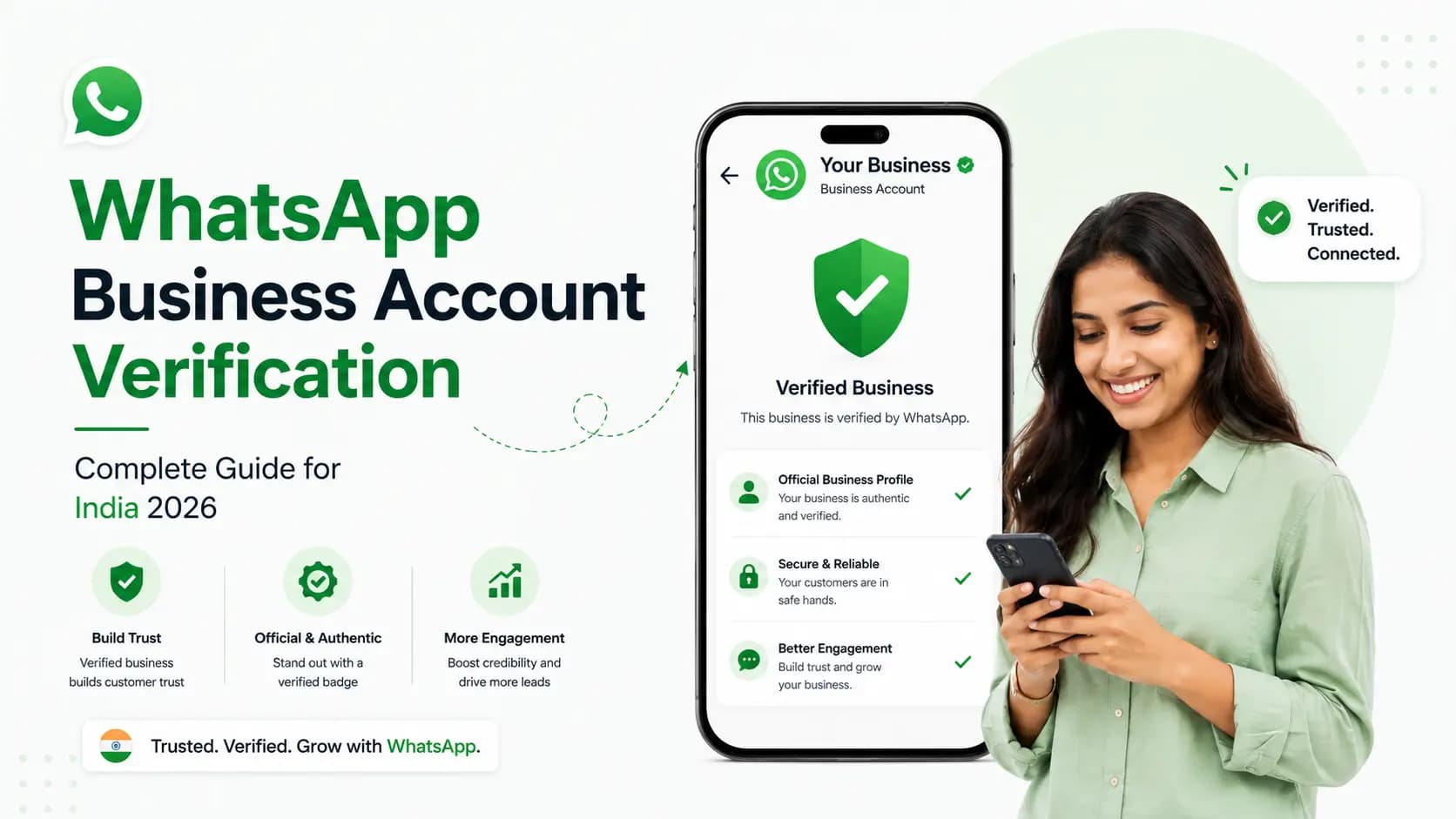
WhatsApp Business Account verification is a two-stage process: first, Meta Business Verification (verifying your company identity through Meta Business Manager), and second, registering and verifying your phone number on the WhatsApp Business Platform. Meta Business Verification requires submitting your Certificate of Incorporation or GST certificate, business website, and phone number. Phone number verification is completed via OTP. Both stages are managed by Get Click Media as part of WhatsApp API onboarding.
WhatsApp Business Account verification unlocks the full capabilities of the WhatsApp Business Platform- including the ability to send outbound messages to customers, apply for Green Tick verification, and access the complete API feature set. Without verification, your account has limited capabilities and cannot send business-initiated messages.
Two Types of WhatsApp Verification- What Is Different
| Verification type | What it verifies | What it unlocks | Time |
|---|---|---|---|
| Meta Business Verification | Your company's legal identity- that your business is a real, registered entity | Full WhatsApp API access, template approval, Green Tick eligibility | 1–3 business days |
| Phone Number Verification | That you control the phone number being registered on the Platform | Number is active on WhatsApp Business Platform- ready to send and receive | 30 minutes |
| WhatsApp Green Tick | That your brand is notable and authentic (additional step after business verification) | Official green verified badge on your WhatsApp Business profile | 5–14 business days |
Stage 1- Meta Business Verification Step by Step
1. Access Meta Business Manager
Go to business.facebook.com. Log in with your business Facebook account. Navigate to Settings (gear icon, bottom left) > Business Settings > Security Centre. You will see the Business Verification section.
If your business already runs Facebook ads, you likely already have a Meta Business Manager. The verification status shows here.
2. Start Verification
Click Start Verification in the Security Centre. Select India as your country. Select your business type: Business (most common), Organisation, or Self-Employed. Meta presents a list of documents accepted for each type.
Choose Business Entity for Private Limited, LLP, or registered companies. Choose Self-Employed for individual proprietorships.
3. Submit Business Documents
Upload your chosen document: Certificate of Incorporation (Private Ltd, LLP) or GST Registration Certificate (all business types) or Shops and Establishment Certificate. Document must be in PDF or image format, clearly legible, showing your business name that matches your Meta BM account name.
GCM strongly recommends GST certificate for fastest verification- it is widely accepted by Meta and typically has a faster review time in India.
4. Verify Business Phone Number
Meta asks you to verify a phone number associated with your business. This can be different from the WhatsApp number you intend to use. Meta sends an OTP via SMS or voice call- enter it to confirm. This step proves you control the business phone number listed on your website or document.
Use your official business phone number that appears on your website contact page- not a personal mobile.
5. Wait for Meta Review
Meta reviews your submission- typically 1 to 3 business days for Indian businesses. You receive a notification email when approved. If rejected, Meta provides a reason- most common issue is document name mismatch with Meta BM account name. Get Click Media tracks your verification status and follows up with Meta if delayed.
If rejected: ensure business name on document exactly matches the name in your Meta Business Manager. GCM manages rejection handling.
Stage 2- WhatsApp Phone Number Verification
After Meta business verification, the phone number registration for WhatsApp is quick:
- Your WhatsApp Business Account (WABA) is created by Get Click Media inside your verified Meta Business Manager
- The phone number you want to use for WhatsApp API is added to the WABA
- Meta sends a 6-digit OTP to the number via SMS or voice call
- The OTP is entered to complete number registration
- The number is now live on WhatsApp Business Platform
Number requirement: The phone number must NOT be currently active on WhatsApp Business App or consumer WhatsApp. If it is, it must be deregistered from the existing WhatsApp before being registered on the API. Deregistration is done in the WhatsApp App Settings. Existing chat history stays on the device.
Frequently Asked Questions- WhatsApp Business Account Verification
How long does WhatsApp Business Account verification take in India? Meta Business Verification: 1 to 3 business days. Phone number OTP verification: 30 minutes. Total from start to verified account: typically 2 to 4 business days. With Get Click Media managing the process and running both stages in parallel where possible, most Indian businesses complete both stages within 3 business days.
What documents are accepted for Meta Business Verification in India? Meta accepts: Certificate of Incorporation, GST Registration Certificate, Shops and Establishment Certificate, MSME Udyam Registration, Trust registration documents, and NGO registration certificates. The most widely accepted and fastest to process in India are GST certificate and Certificate of Incorporation.
What if my Meta Business Verification is rejected? Rejections most commonly happen when the business name on the submitted document does not exactly match the name in your Meta Business Manager account. Check the name in Meta BM Settings and ensure it matches your document. Other common reasons: document is unclear or expired, website does not clearly show the business name and type. Get Click Media handles all rejection cases- we identify the issue and guide you through resubmission.
Is WhatsApp Business Account verification the same as WhatsApp Green Tick? No- they are different. Business verification proves you are a real registered company. Green Tick (the official verified badge visible to customers on your WhatsApp profile) is an additional verification step available only after business verification is complete. Green Tick requires your business to be a notable brand- not all verified businesses automatically qualify. See our Green Tick guide for the full process.
Get Started
Need the full picture of what Meta Business Verification itself involves- accepted documents, common rejection reasons? Read our Meta Business Verification guide, or start from scratch with how to get WhatsApp Business API.
Get WhatsApp Business API- Start Onboarding · Request a Demo · View Pricing
Article topics
Frequently Asked Questions
How long does WhatsApp Business Account verification take in India?
Meta Business Verification: 1 to 3 business days. Phone number OTP verification: 30 minutes. Total from start to verified account: typically 2 to 4 business days. With Get Click Media managing the process and running both stages in parallel where possible, most Indian businesses complete both stages within 3 business days.
What documents are accepted for Meta Business Verification in India?
Meta accepts: Certificate of Incorporation, GST Registration Certificate, Shops and Establishment Certificate, MSME Udyam Registration, Trust registration documents, and NGO registration certificates. The most widely accepted and fastest to process in India are GST certificate and Certificate of Incorporation.
What if my Meta Business Verification is rejected?
Rejections most commonly happen when the business name on the submitted document does not exactly match the name in your Meta Business Manager account. Check the name in Meta BM Settings and ensure it matches your document. Other common reasons: document is unclear or expired, website does not clearly show the business name and type. Get Click Media handles all rejection cases- we identify the issue and guide you through resubmission.
Is WhatsApp Business Account verification the same as WhatsApp Green Tick?
No- they are different. Business verification proves you are a real registered company. Green Tick (the official verified badge visible to customers on your WhatsApp profile) is an additional verification step available only after business verification is complete. Green Tick requires your business to be a notable brand- not all verified businesses automatically qualify.
About the author
Get Click Media creates practical resources for businesses using messaging, automation, analytics, and digital communication to improve customer engagement. This article was published on .